The "DNS Server Isn't Responding" message indicates that your computer is physically connected to your local router via Wi-Fi or Ethernet, but fails to translate human-readable domain names (such as example.com) into numeric IP addresses. Because raw IP packets still traverse the network, messaging apps may occasionally stay connected while web browsers fail completely.
Quick Diagnostic Summary
Before changing system registry values or reinstalling drivers, verify whether the fault lies with your ISP's default DNS resolver, a corrupted local DNS cache on Windows, or an IPv6 routing conflict on your router.
1. Isolate DNS Failure from Full Internet Outage
First, confirm that your underlying TCP/IP connection can reach external networks by pinging a public IP address directly without relying on DNS resolution.
Step 1: Test Raw IP vs. Domain Name Resolution
Press Win + X and select Terminal (Admin) or Command Prompt (Admin). Run the following two commands sequentially:
# Test direct ICMP reachability to Cloudflare IPv4 address
ping 1.1.1.1 -n 4

# Test domain name resolution
nslookup techtroubledesk.com
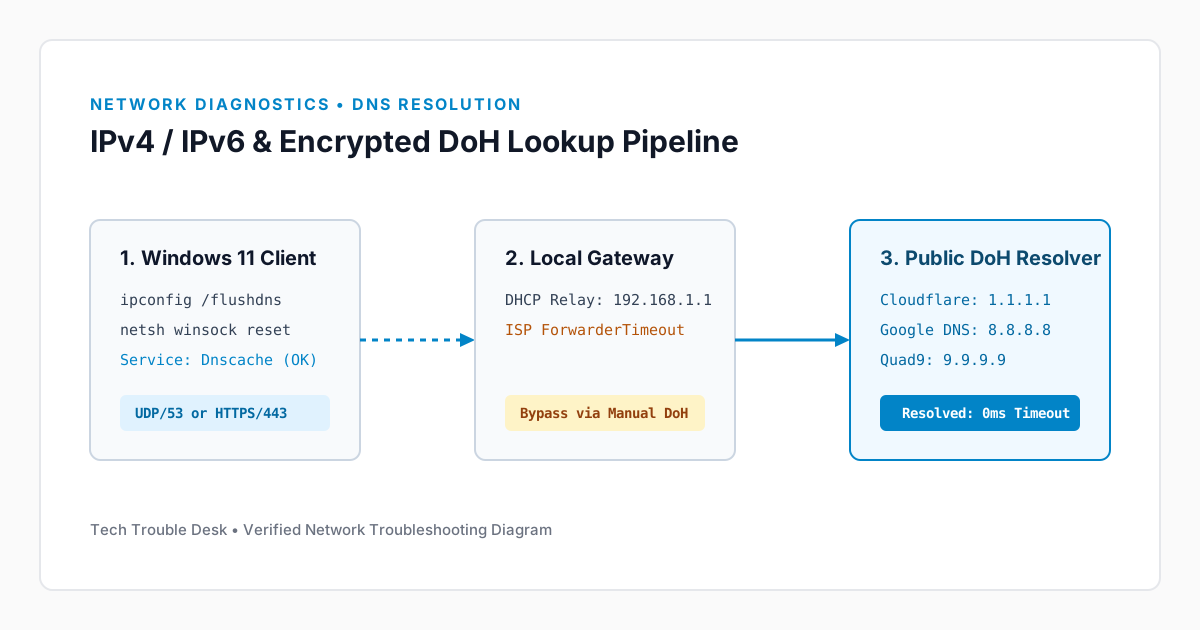
If ping 1.1.1.1 succeeds with 0% packet loss, but nslookup returns DNS request timed out, your physical internet link is healthy and the issue is strictly isolated to DNS resolution.
2. Flush the Local Resolver Cache and Reset Winsock
Windows caches DNS responses locally to accelerate repeat visits. If an outdated or poisoned record is stored in the resolver cache, connections will fail until the cache is purged.
Step 2: Clear DNS Cache and Renew DHCP Lease
In your elevated Terminal window, execute the following commands in order:
ipconfig /flushdns
ipconfig /release
ipconfig /renew
netsh int ip reset
netsh winsock reset
Temporary Connection Drop
Running ipconfig /release will briefly disconnect active remote desktop sessions, file downloads, or voice calls for 3 to 5 seconds while your network adapter negotiates a fresh DHCP lease.
Residential routers normally forward DNS queries through your Internet Service Provider's default servers, which frequently suffer from high latency or regional outages. Configuring encrypted DNS over HTTPS (DoH) in Windows 11 resolves this permanently.
| Provider |
Primary IPv4 |
Secondary IPv4 |
DoH Template URI |
| Cloudflare |
1.1.1.1 |
1.0.0.1 |
https://cloudflare-dns.com/dns-query |
| Google Public DNS |
8.8.8.8 |
8.8.4.4 |
https://dns.google/dns-query |
| Quad9 (Malware Blocking) |
9.9.9.9 |
149.112.112.112 |
https://dns.quad9.net/dns-query |
Step 3: Configure Manual DNS in Windows 11 Settings
- Open Settings (Win + I) and navigate to Network & internet.
- Select your active connection (Wi-Fi → Hardware properties, or Ethernet).
- Next to DNS server assignment, click Edit.
- Switch the dropdown from Automatic (DHCP) to Manual and toggle IPv4 On.
- Enter
1.1.1.1 as Preferred DNS, set DNS over HTTPS to On (automatic template), and enter 8.8.8.8 as Alternate DNS.
- Click Save and test your browser immediately.
4. Verify the Windows DNS Client Service Status
If DNS lookups continue to fail after changing resolvers, verify that the local DNS Client (Dnscache) Windows service is running and hasn't been disabled by third-party VPN software or system optimization utilities.
# Check the status of the Windows DNS Client service
Get-Service -Name Dnscache | Select-Object Name, Status, StartType
Ensure the Status reads Running and StartType is set to Automatic. Restart your computer if you executed the Winsock reset in Step 2 so all kernel-mode network filters reinitialize cleanly.