SoftwareVerified Troubleshooting Procedure

How to Fix High Memory Usage and Renderer Process Crashes in Chrome and Edge

Tame multi-gigabyte browser RAM consumption, 'STATUS_ACCESS_VIOLATION' tab crashes, and GPU hardware acceleration glitches in Chromium-based browsers.

At-a-Glance Diagnostic Summary
Lab Verified Procedure
Difficulty Level
Intermediate
Estimated Fix Time
5–10 minutes
Applies To
Software (All Current Releases)
Chromium multi-process architecture showing Browser, GPU, Utility, and per-site Renderer processes

Modern Chromium browsers (Google Chrome, Microsoft Edge, Brave) use strict site isolation, launching a separate sandboxed process for every active domain, iframe, and browser extension. While this prevents a crashed tab from taking down the entire browser, poorly coded extensions or GPU shader cache corruption can cause massive memory bloat or STATUS_ACCESS_VIOLATION errors.

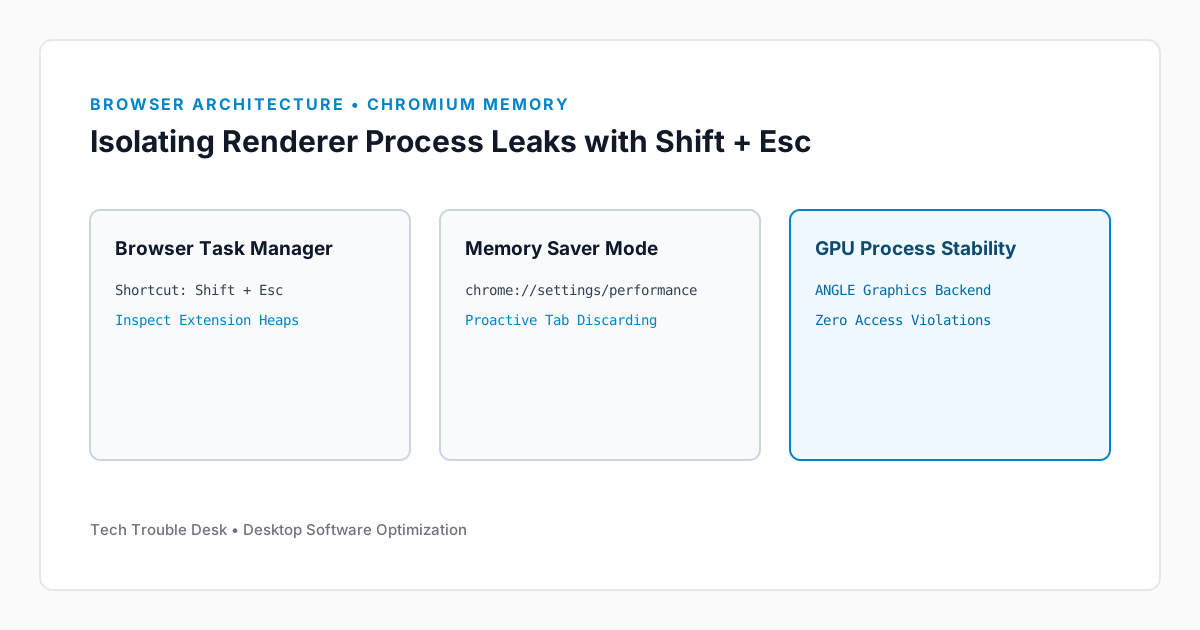
1. Audit Per-Tab and Per-Extension Memory with Shift + Esc

Step 1: Open the Built-In Chromium Task Manager

While inside Chrome or Edge on Windows, press Shift + Esc (or go to Menu (⋮) → More Tools → Task Manager on macOS). Sort by the Memory footprint column to see which specific extension or tab is leaking RAM.

2. Configure Proactive Tab Discarding and Reset GPU Shader Cache

Navigate to chrome://settings/performance (or edge://settings/system) and set Memory Saver to Maximum so inactive background tabs release their DOM heaps after 15 minutes.
Did this troubleshooting guide solve your problem?

16 readers found this solution verified and accurate.

Frequently Asked Questions

Is it safe to apply the Software steps in "How to Fix High Memory Usage and Renderer Process Crashes in Chrome and Edge" on a production system?

Yes. Our troubleshooting sequence starts with non-destructive diagnostic checks and reversible cache or service resets before recommending deeper configuration changes.

What should I do if the issue persists after completing all steps?

Reboot the device once to ensure kernel and network stack changes take effect, verify your OS build is up to date, and check the system event logs referenced in this guide.

Found this helpful? Share this solution.

Send this verified troubleshooting guide to a colleague, team channel, or bookmark it for later.

Principal Systems Editor

Principal Systems & Network Diagnostics Editor at Tech Trouble Desk with 15+ years of experience in Windows internals, Apple platforms, and enterprise network engineering.

Reader Diagnostics & Community Notes (0)

Share additional hardware configurations, OS versions, or troubleshooting steps that worked on your system. All comments are moderated for technical accuracy.

Leave a Technical Note or Question

Protected by rate-limiting and automated spam filtering.
No approved comments yet. Be the first to share your diagnostic experience above.

Weekly Systems & Troubleshooting Briefing

Receive concise, field-tested fixes for critical Windows, macOS, iOS, Android, and cybersecurity issues from the Tech Trouble Desk engineering team. No spam or filler—ever.

One-click unsubscribe available in every dispatch. Read our Privacy Policy.