CybersecurityVerified Troubleshooting Procedure

What to Do When You Lose Access to Your 2FA Authenticator App or Hardware Passkey

A practical emergency recovery blueprint for regaining access to locked accounts when your phone is lost, damaged, or factory reset without losing your two-factor authentication security.

At-a-Glance Diagnostic Summary
Lab Verified Procedure
Difficulty Level
Intermediate
Estimated Fix Time
5–10 minutes
Applies To
Cybersecurity (All Current Releases)
Two-factor authentication and passkey cross-device recovery architecture

Losing a smartphone that holds your Time-based One-Time Password (TOTP) authenticator seeds can lock you out of critical email, banking, and cloud infrastructure accounts. Before initiating high-friction manual identity verification with customer support, work through these recovery channels in exact order.

1. Check Existing Authenticated Desktop or Tablet Sessions Immediately

Do Not Clear Browser Cookies on Your Laptop

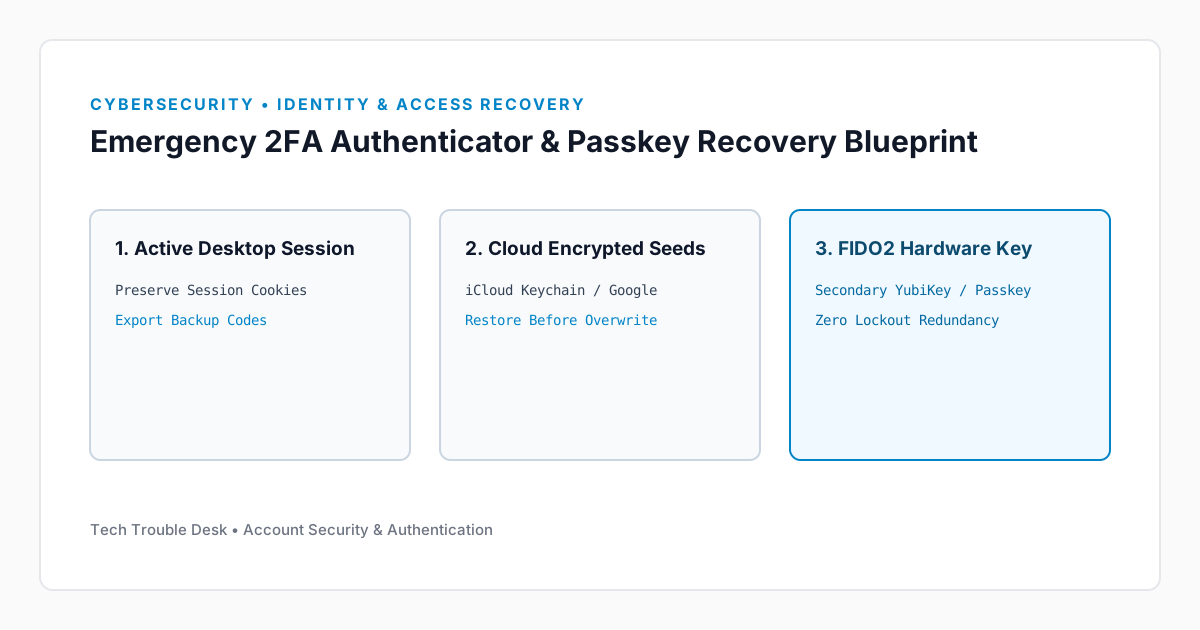
If your laptop or tablet is still logged into Google, Microsoft, GitHub, or Apple, do not log out or clear cookies. An active session often permits generating new backup codes or registering a replacement security key with only your master password.

2. Restore Cloud-Backed Authenticator Seeds

Most modern authenticator apps support encrypted cloud recovery if enabled prior to device loss:

  • Google Authenticator: Sign into the same Google Account on a replacement phone; synced TOTP codes restore automatically.
  • Apple Passwords / iCloud Keychain: Built-in iOS/macOS verification codes sync automatically across all devices signed into your Apple Account.
  • Microsoft Authenticator: Tap Begin recovery on the setup screen before signing into any individual work or personal accounts, otherwise you risk overwriting the cloud backup.

Did this troubleshooting guide solve your problem?

19 readers found this solution verified and accurate.

Frequently Asked Questions

Is it safe to apply the Cybersecurity steps in "What to Do When You Lose Access to Your 2FA Authenticator App or Hardware Passkey" on a production system?

Yes. Our troubleshooting sequence starts with non-destructive diagnostic checks and reversible cache or service resets before recommending deeper configuration changes.

What should I do if the issue persists after completing all steps?

Reboot the device once to ensure kernel and network stack changes take effect, verify your OS build is up to date, and check the system event logs referenced in this guide.

Found this helpful? Share this solution.

Send this verified troubleshooting guide to a colleague, team channel, or bookmark it for later.

Principal Systems Editor

Principal Systems & Network Diagnostics Editor at Tech Trouble Desk with 15+ years of experience in Windows internals, Apple platforms, and enterprise network engineering.

Reader Diagnostics & Community Notes (0)

Share additional hardware configurations, OS versions, or troubleshooting steps that worked on your system. All comments are moderated for technical accuracy.

Leave a Technical Note or Question

Protected by rate-limiting and automated spam filtering.
No approved comments yet. Be the first to share your diagnostic experience above.

Weekly Systems & Troubleshooting Briefing

Receive concise, field-tested fixes for critical Windows, macOS, iOS, Android, and cybersecurity issues from the Tech Trouble Desk engineering team. No spam or filler—ever.

One-click unsubscribe available in every dispatch. Read our Privacy Policy.