HardwareVerified Troubleshooting Procedure

Troubleshooting NVMe M.2 SSD Not Showing Up in BIOS or Windows Disk Management

Whether you just installed a new M.2 NVMe SSD that isn't appearing in File Explorer, or an existing drive vanished after a reboot, follow this PCIe lane and storage controller guide.

At-a-Glance Diagnostic Summary
Lab Verified Procedure
Difficulty Level
Intermediate
Estimated Fix Time
5–10 minutes
Applies To
Hardware (All Current Releases)
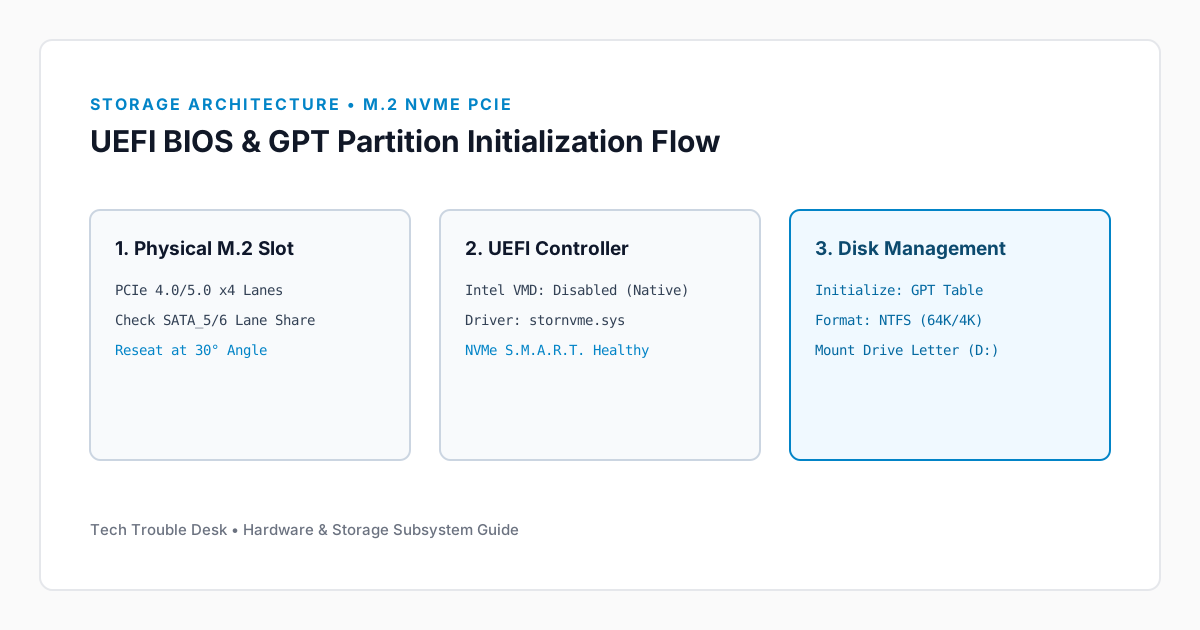
Motherboard M.2 PCIe NVMe slot architecture and Disk Management initialization diagram

When an M.2 SSD does not appear in Windows File Explorer, the root cause falls into one of two categories: Case A, where the drive is visible in BIOS and Device Manager but lacks an initialized partition table, or Case B, where the drive is completely invisible at the hardware/UEFI level due to PCIe lane sharing or protocol mismatch.

1. Initialize a Brand-New SSD in Windows Disk Management

Brand-new SSDs ship completely blank without a GUID Partition Table (GPT) or NTFS file system, so File Explorer ignores them until initialized.

Step 1: Create a GPT Volume in Disk Management

  1. Right-click the Windows Start button and select Disk Management.
  2. Look for a disk labeled Unknown / Not Initialized with an Unallocated black bar.
  3. Right-click the disk label on the left, select Initialize Disk, choose GPT (GUID Partition Table), and click OK.
  4. Right-click the Unallocated space, choose New Simple Volume, assign a drive letter, and format as NTFS (Quick Format).

2. Fix UEFI BIOS Invisibility (PCIe vs. SATA & Intel VMD)

If the SSD does not appear in Disk Management at all, reboot into your motherboard UEFI BIOS (Del or F2) and verify these three hardware settings:

  • M.2 SATA vs. M.2 PCIe NVMe Protocol Mismatch: Check your motherboard manual to confirm the M.2 slot supports PCIe NVMe (or SATA if using an older M.2 SATA drive).
  • PCIe Lane Sharing Conflicts: On many motherboards, populating M2_2 or M2_3 shares bandwidth with SATA_5/6 or the secondary PCIe x16 slot.
  • Intel VMD (Volume Management Device): On Intel 11th–14th Gen & Core Ultra platforms, if Intel VMD Controller is enabled in BIOS, Windows requires the Intel RST VMD driver to see the NVMe drive. Disabling VMD in BIOS exposes the drive directly to Windows' native NVMe driver (stornvme.sys).

Did this troubleshooting guide solve your problem?

27 readers found this solution verified and accurate.

Frequently Asked Questions

Is it safe to apply the Hardware steps in "Troubleshooting NVMe M.2 SSD Not Showing Up in BIOS or Windows Disk Management" on a production system?

Yes. Our troubleshooting sequence starts with non-destructive diagnostic checks and reversible cache or service resets before recommending deeper configuration changes.

What should I do if the issue persists after completing all steps?

Reboot the device once to ensure kernel and network stack changes take effect, verify your OS build is up to date, and check the system event logs referenced in this guide.

Found this helpful? Share this solution.

Send this verified troubleshooting guide to a colleague, team channel, or bookmark it for later.

Principal Systems Editor

Principal Systems & Network Diagnostics Editor at Tech Trouble Desk with 15+ years of experience in Windows internals, Apple platforms, and enterprise network engineering.

Reader Diagnostics & Community Notes (0)

Share additional hardware configurations, OS versions, or troubleshooting steps that worked on your system. All comments are moderated for technical accuracy.

Leave a Technical Note or Question

Protected by rate-limiting and automated spam filtering.
No approved comments yet. Be the first to share your diagnostic experience above.

Weekly Systems & Troubleshooting Briefing

Receive concise, field-tested fixes for critical Windows, macOS, iOS, Android, and cybersecurity issues from the Tech Trouble Desk engineering team. No spam or filler—ever.

One-click unsubscribe available in every dispatch. Read our Privacy Policy.